AI Assistant
AI Assistant is offered through the Early Access Program (EAP) and is only supported on Stellar Cyber in SaaS deployments. It is included with every Alert Auto Triage license at no additional cost. To take part in the Early Access Program, contact your Stellar Cyber representative.
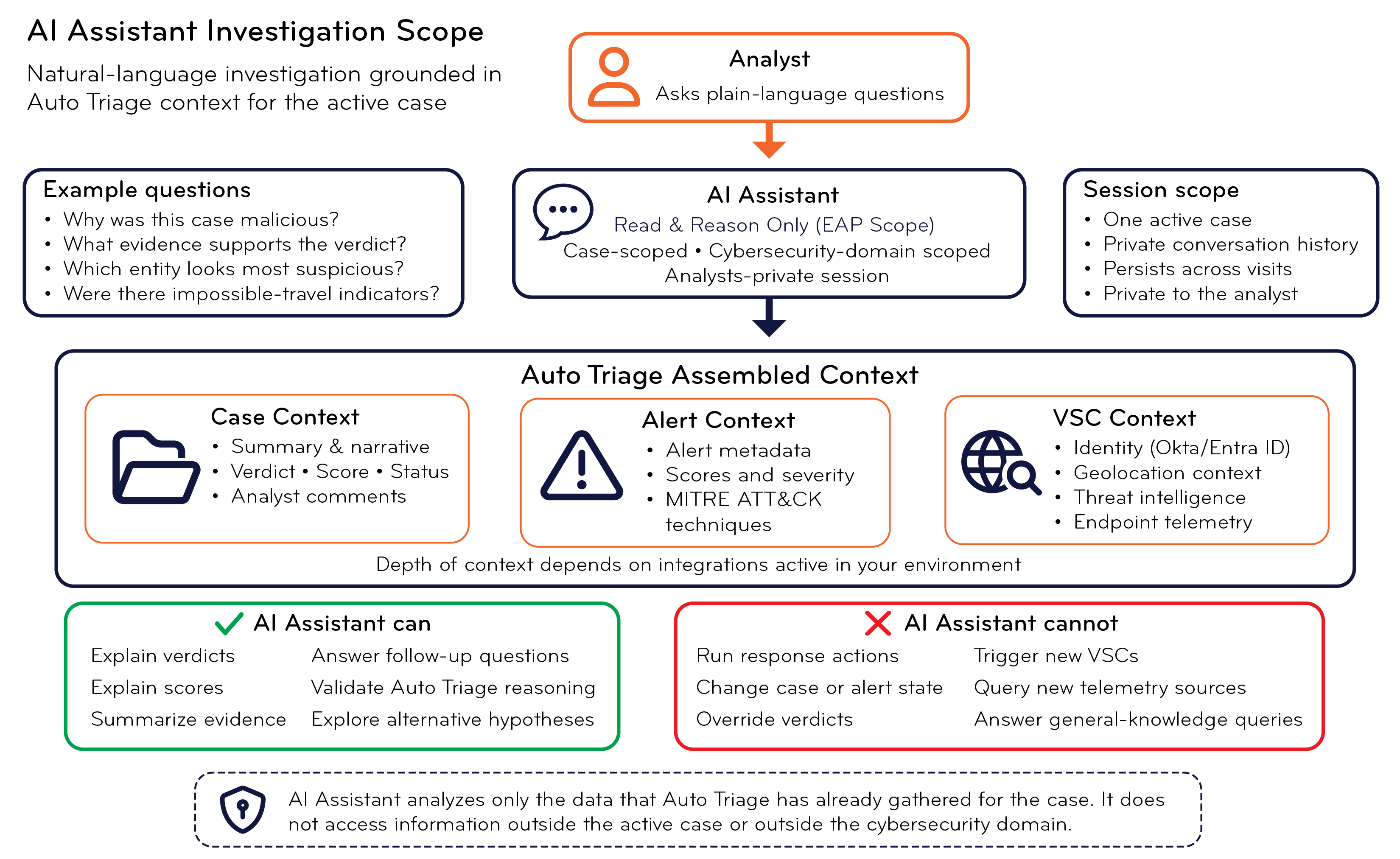
What AI Assistant Does – AI Assistant is an interactive panel in the Case Detail view that lets you investigate a case by asking questions in natural language. You can ask why a case received a particular verdict, what evidence supports a score, or which entities appear most suspicious. AI Assistant converts your questions into answers grounded in the active case and explains the reasoning behind Alert Auto Triage findings. You can continue the investigation by asking follow-up questions in your own words, with no query syntax to learn.
Data Sources and Context – When you ask a question, AI Assistant reasons only over evidence that Alert Auto Triage has already assembled for the active case. You can explore information from the case summary, narrative, verdict, score, status, analyst comments, alert metadata, alert scores, MITRE ATT&CK mappings, and Verdict Signal Check (VSC) results. Depending on the integrations enabled in your environment, you can also ask questions about identity information from Okta or Microsoft Entra ID, geolocation context, threat intelligence enrichment from sources such as VirusTotal and AbuseIPDB, and endpoint telemetry from SentinelOne or Microsoft Defender. Environments with additional identity and endpoint integrations provide richer context and more detailed answers.
Scope and Persistence – Your AI Assistant session is scoped to a single case and is private to you. If multiple analysts are working the same case, each analyst maintains an independent conversation history, preventing cross-contamination of investigative reasoning and preserving a clear audit trail. If you close the panel, leave the case, or end a shift, you can return later and continue where you left off. You can clear a session using the New Session option in the panel for a fresh start. You can also copy a conversation to the clipboard and pasted into the case ticket as an investigation note. The incoming analyst can open the case, review the prior conversation thread in AI Assistant, and pick up the investigation from where it was left off.
Capabilities and Limitations – You can use AI Assistant to explain evidence, summarize findings, answer follow-up questions, validate Auto Triage reasoning, and explore alternative investigative hypotheses. AI Assistant is limited to the cybersecurity context of the active case and does not answer general-knowledge questions or access information outside the case. AI Assistant is a read-and-reason feature. You can use it to understand and evaluate evidence, but you cannot use it to run response actions, change case or alert state, override verdicts, trigger new Verdict Signal Checks, or run new telemetry queries. Existing workflows and tools remain responsible for those actions.
|
Capability |
Description |
|---|---|
| Natural language Q&A | Ask questions in plain English, scoped to the active case and the cybersecurity domain. |
| Verdict justification | Get a plain-language explanation of why a case received its verdict and score. |
| Evidence citations | Responses cite the specific alerts, entities, or VSC checks that informed them. |
| Dynamic suggested prompts | Context-specific starter questions generated from the active case or alert. |
| Entity chips | Identifiers in responses—IP addresses, emails, URLs, file paths—are highlighted for quick scanning. |
| Per-user session retention | Conversation history is preserved per analyst, per case, across visits. |
| Session reset | Start a fresh session at any time using the New Session option. |
| Cliipboard copy | Any response can be copied for use in tickets, reports, or runbooks. |
Analyst Benefits – You can use AI Assistant to understand why a case received a particular verdict or score, locate specific details without opening every alert, validate Auto Triage reasoning against your own judgment, and explore alternative explanations for suspicious activity. If you are new to an investigation workflow, AI Assistant can provide in-context guidance while you work through a case. If you are an experienced analyst, it can reduce the time spent reviewing raw case data and help you move more quickly from evidence to judgment and action.
The following are the sections in this topic:
Prerequisites
The following topics describe what is required to access AI Assistant and the limits that apply to its use through the Early Access Program.
Licensing
AI Assistant is included with every Auto Triage license at no additional cost. It is not available without an active Auto Triage entitlement.
Deployment Requirements
AI Assistant is currently available on SaaS deployments only.
Environment Validation
Before enabling AI Assistant for an EAP customer instance, Stellar Cyber performs an environment validation that reviews:
-
Current case volume and severity distribution
-
Data Platform capacity
-
Active integrations – particularly SentinelOne, Microsoft Defender, Okta, and Microsoft Entra ID, which provide the deepest VSC enrichment
A Stellar Cyber Technical Account Manager (TAM) coordinates this validation as part of EAP onboarding. You do not need to initiate it separately.
Usage Limits
AI Assistant works on the analyses produced by Alert Auto Triage, which limits the number of automated and manually triggered case analyses per instance. For these limits and for how to trigger an analysis, see Perform Alert Auto Triage on a Case.
Working with AI Assistant
AI Assistant opens as a side panel within the Case Detail view. From this panel, you open AI Assistant, ask questions, read grounded responses, and manage your session. The following topics describe each part of that workflow.
Open AI Assistant
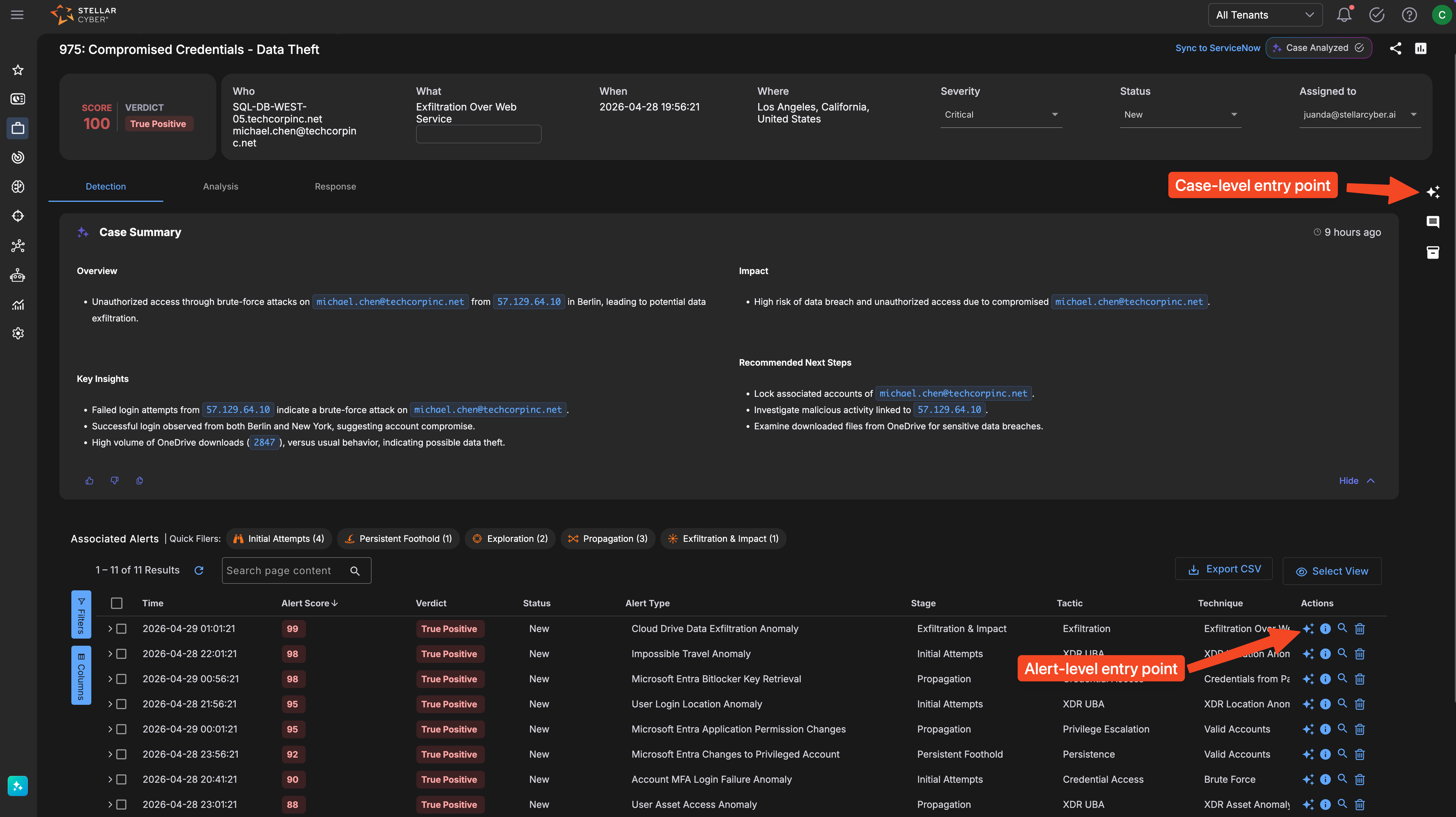
AI Assistant is available from the Case Detail view, so you open it from within a case rather than from a menu. It has two entry points that open the same panel with access to the same case data. The difference is in how the suggested prompts are framed: one entry point is scoped to the entire case, and the other is focused on a single alert.
To open AI Assistant for an entire case:
-
Select Cases to open the Cases page.
-
Select a case name to open the Case Detail view.
-
In the top-right corner of the Case Detail view, select the AI Assistant icon.
AI Assistant opens scoped to the entire case, including its summary, verdict, all associated alerts, and all VSC signals gathered during triage. This is the recommended starting point for most investigations.
To open AI Assistant for a specific alert:
-
Select Cases to open the Cases page.
-
Select a case name to open the Case Detail view.
-
On the Detection tab, find the alert you want to investigate in the Associated Alerts table.
-
In the Actions column for that alert, select the AI Assistant icon.
AI Assistant opens focused on that alert. The full case context remains available, but the suggested prompts are tailored to the alert in focus. Use this entry point when a particular alert warrants closer examination.
You can switch freely between case-level and alert-level questions within a single session. The entry point shapes the initial set of suggested prompts, but it does not restrict the questions you can ask.
Ask a Question
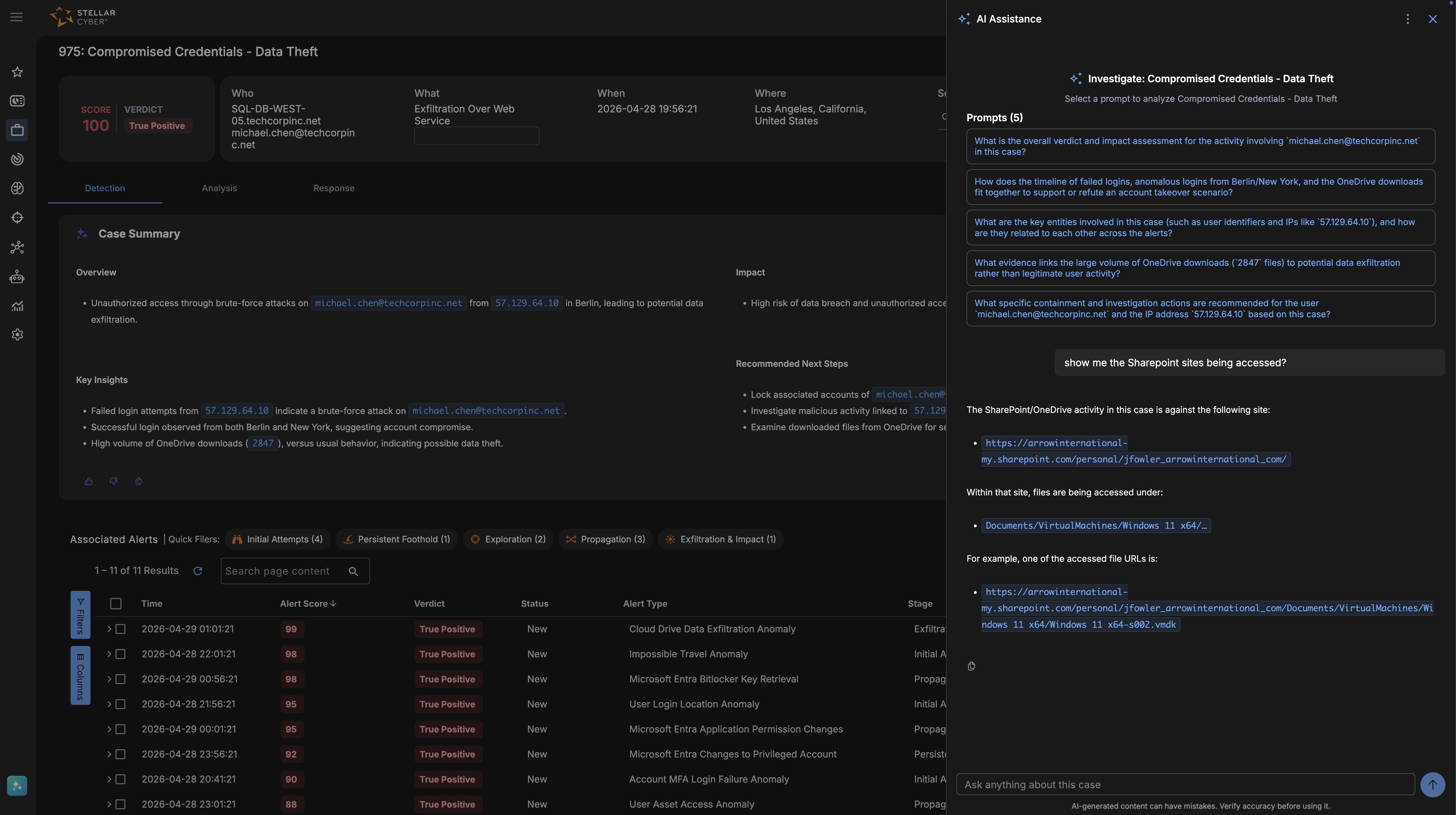
The top of the panel displays the name of the active case or alert and confirms the scope that AI Assistant is working within. Near the top of the panel, a set of context-specific suggested prompts shows the kinds of questions AI Assistant can answer and gives you a one-select way to begin an investigation thread. The suggested prompts change depending on whether you opened the panel at the case level or the alert level, and they are a starting point rather than a constraint.
To ask your own question, enter it in the free-form input field at the bottom of the panel. The field accepts plain-language questions that are relevant to the case and to the cybersecurity domain, with no query syntax to learn.
Read a Response
Answers appear in the conversation thread above the input field. Identifiers in a response, such as user email addresses, IP addresses, file paths, and URLs, appear as highlighted entity chips, which make answers faster to scan and easier to connect to the underlying data. Where applicable, a response includes citations that identify the specific alerts, fields, or Verdict Signal Checks that informed it, so you can verify the evidence that AI Assistant drew on. To reuse a response, select the copy button to copy its full text to the clipboard for a ticket, runbook, or incident report.
Every session displays the notice that AI-generated content can have mistakes and that you should verify accuracy before using it. Validate AI Assistant responses against the underlying alerts and telemetry before you act on them.
Manage Your Session
Each session is private to you and persists across visits, so you can return to a case and continue where you left off. To begin a fresh investigation thread, for example when another analyst wants to start an independent thread, select New Session in the panel menu to clear the conversation.
To hand off an active investigation, copy the conversation to the clipboard and paste it into the case ticket as an investigation note. The incoming analyst can then open the case, review the prior conversation thread in AI Assistant, and continue the investigation from where it was left off.
Example Workflows
The following examples illustrate how AI Assistant fits into typical investigation tasks.
Understand a High-Score Verdict
You open a case scored at 100 with a True Positive verdict. Rather than reviewing all of the associated alerts to reconstruct the reasoning, you open AI Assistant from the case-level entry point and ask it: Why did this case score 100?
AI Assistant explains that the case combines three high-confidence signals: a failed-login brute-force pattern from 57.129.64.10, an Impossible-Travel anomaly between Berlin and New York for michael.chen@techcorpinc.net, and an unusual OneDrive download volume of 2,847 files. Each signal is high-severity on its own, and together they form a complete account-takeover-to-exfiltration chain, which the verdict engine scores at the maximum.
You now have a clear picture of the case and can confirm the reasoning or ask follow-up questions. This is a useful starting point both for junior analysts building familiarity with verdict reasoning and for senior analysts validating the automated conclusion before acting.
Clarify a Detail Quickly
Continuing from the same case, you want to know which file storage resources were accessed, so you tell AI Assistant: Show me the SharePoint sites being accessed.
AI Assistant returns the relevant site path, the folder where files are being accessed, and an example file, all in a single response. The SharePoint/OneDrive activity in this case is against the following site: https://arrowinternational-my.sharepoint.com/personal/jfowler_arrowinternational_com/. Within that site, files are being accessed under Documents/VirtualMachines/Windows 11 x64/. One example file accessed: Windows 11 x64-s002.vmdk.
The same answer would otherwise require you to open the Cloud Drive Data Exfiltration Anomaly alert, expand the raw event fields, and locate the URL. Many investigation questions have short answers, and AI Assistant delivers them immediately.
Investigate an Inconclusive Case
You open a case marked Inconclusive for a Phishing URL Click alert. Stellar Cyber detected risk but lacked enough evidence to classify the activity as malicious or benign. You open AI Assistant from the case level and ask it: Is this login coming from the guest network?
AI Assistant confirms that the source IP belongs to the guest network VLAN, and notes that guest network activity is expected to show higher location variance and limited internal access, which you should weigh when interpreting the Impossible Travel signal.
With this context, you determine that the Impossible Travel signal reflects expected guest network behavior rather than a compromised account. You override the verdict to Benign (True Positive) at the alert level, add a comment explaining the guest network context, and close the case.
Privacy and Data Handling
AI Assistant uses the same AI infrastructure, communication channel, and privacy controls as the Auto Triage verdict engine.
No Customer Data Used for Model Training
Stellar Cyber operates under a formal enterprise agreement with its AI provider. Customer data processed through AI Assistant is not used for AI model training, stored by the AI provider, or shared with third parties. All interactions occur through secure, ephemeral API calls.
Tenant Isolation
Each AI request is scoped to a single tenant data context. No data is shared, cached, reused, or exposed across tenants at any point.
Data Anonymization
Before data is passed to the AI model, Stellar Cyber applies anonymization on a best-effort basis. Full tokenization is not applied to all fields, because tokenizing entity identifiers such as usernames and email addresses can break the AI model ability to correlate related signals across alerts. This is a deliberate design choice that preserves investigative accuracy.
Structured, Curated Input
AI Assistant never ingests raw log streams. The platform extracts, normalizes, and structures security-relevant fields before they reach the model. This bounds the data surface and keeps AI interactions auditable.
Compliance
The Stellar Cyber AI capabilities align with GDPR, SOC 2 Type II, and TX-RAMP standards. The same compliance framework that applies to the Auto Triage verdict engine applies to AI Assistant. For complete details on data handling, retention behavior, and processing boundaries, see Privacy and Data Handling.
Known Limitations
AI Assistant is under active development during the Early Access Program. The following limitations apply to the current scope:
-
Suggested prompt quality, supported integrations, and session behavior can change before general availability.
-
Prompts and responses are designed and tested in English. The underlying model might handle other languages, but accuracy and response quality are not guaranteed outside English.
-
AI Assistant is read-and-reason only. It cannot take response actions, change alert or case state, or trigger new Verdict Signal Checks. These actions remain in their existing workflows.
-
AI Assistant analyzes only the case data that Auto Triage has already gathered. It does not perform new live queries against telemetry sources on demand. If a Verdict Signal Check did not run because a particular integration is not configured, AI Assistant does not have access to that data.
-
AI Assistant is available on SaaS deployments only. It is not currently available for on-premises or hybrid environments. Support for on-premises and hybrid deployments will be evaluated after general availability.
-
AI-generated content can be incorrect. AI Assistant can make mistakes, misinterpret evidence, or miss context that you would catch. Always verify claims against the underlying alerts and telemetry before you act on them.
Provide Feedback
Your feedback during the Early Access Program is an important part of how Stellar Cyber improves AI Assistant before general availability.
-
To capture and share an individual response in a ticket, runbook, or post-incident report, select the copy button on the response.
-
When you override an AI-generated verdict at the alert level, Stellar Cyber logs the action and incorporates it into the continuous learning loop. Adding a comment when you override provides an additional learning signal. For more information about overriding verdicts, see Alert Auto Triage.
-
For broader feedback on the Early Access Program experience, such as feature requests, usability observations, or questions, contact your Stellar Cyber Technical Account Manager.
