Alert Auto Triage
In SaaS deployments, Alert Auto Triage requires an add-on license, which you can request from your Customer Success representative (or you can access it as part of an active trial). For on-premises deployments, this feature is available through the Early Access Program (EAP). On-premises deployments require outbound connectivity from the deployment to the Stellar Cyber cloud AI services; for details, see AI Processing and Data Flow. Contact your Customer Success representative to enroll in EAP.
Alert Auto Triage automatically investigates alerts to determine whether they represent a True Positive, Benign (True Positive), False Positive, or Inconclusive finding. It helps you reduce manual triage effort and focus on alerts that require your attention.
This feature is part of the Stellar Cyber Human-Augmented Autonomous SOC model, which combines automation with human oversight. By automatically classifying alerts before you review them, the Stellar Cyber Platform increases operational speed, reduces noise, and ensures your attention is directed toward high-confidence and high-impact security incidents.
For information about how long Auto Triage takes and how to interpret processing time, see Understanding Alert Auto Triage Performance.
The automated triage process uses structured validation checks called Verdict Signal Checks (VSC) to assign verdicts and provide supporting evidence for each decision. You can override or confirm verdicts, and your feedback helps improve future results through continuous learning.
Alert Auto Triage uses VirusTotal as one of its intelligence sources to check IP addresses, URLs, domains, and file hashes as part of its Verdict Signal Checks (VSCs). Consequently, you must install VirusTotal credentials (a VirusTotal API key) to enable Stellar Cyber integration with VirusTotal. For information about this, see Credential Management.
To investigate a triaged case interactively, you can use AI Assistance, which lets you ask why a case received its verdict, clarify alert details, and explore follow-up hypotheses in plain language against the case data and VSC context that Auto Triage has already assembled.
The following are the sections in this topic:
Perform Alert Auto Triage on a Case
By default, cases with a severity score of 75 or higher (Critical) are automatically analyzed by the Stellar Cyber Platform. The platform supports up to 560 automated case analyses per rolling 24-hour period for critical cases. In addition, you can manually trigger up to 40 on-demand case analyses per rolling 24-hour period, which can be used for cases with lower severity scores or to reanalyze cases that have received new alerts.
When new alerts are added to a previously analyzed case and the case severity score increases by 10 or more points, the case is automatically reanalyzed and the new alerts are triaged. However, if the score increase is less than 10 points — which can happen when a case is already at a high score — the new alerts are not automatically triaged. In these situations, you can use the Run Analysis button to manually trigger triage for the new alerts.
If you want to analyze a case with a lower severity score or reanalyze a case that has already been processed but now contains new alerts, follow the steps below.
-
Select a case name on the Cases page.
This opens the case details.
-
At the top of the page, select Run Analysis.
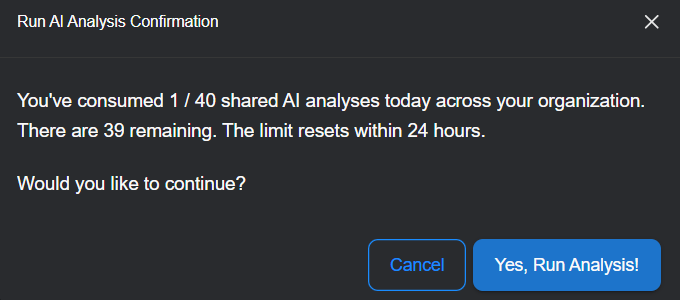
A message appears showing how many AI analyses have been run by your organization in the past 24 hours. This limit ensures balanced use of analysis resources across all tenants.
-
Select Yes, Run Analysis!.
The Run Analysis button changes to Analyzing... and then Case Analyzed when done. The process takes several minutes, depending on the number of alerts in the case.

-
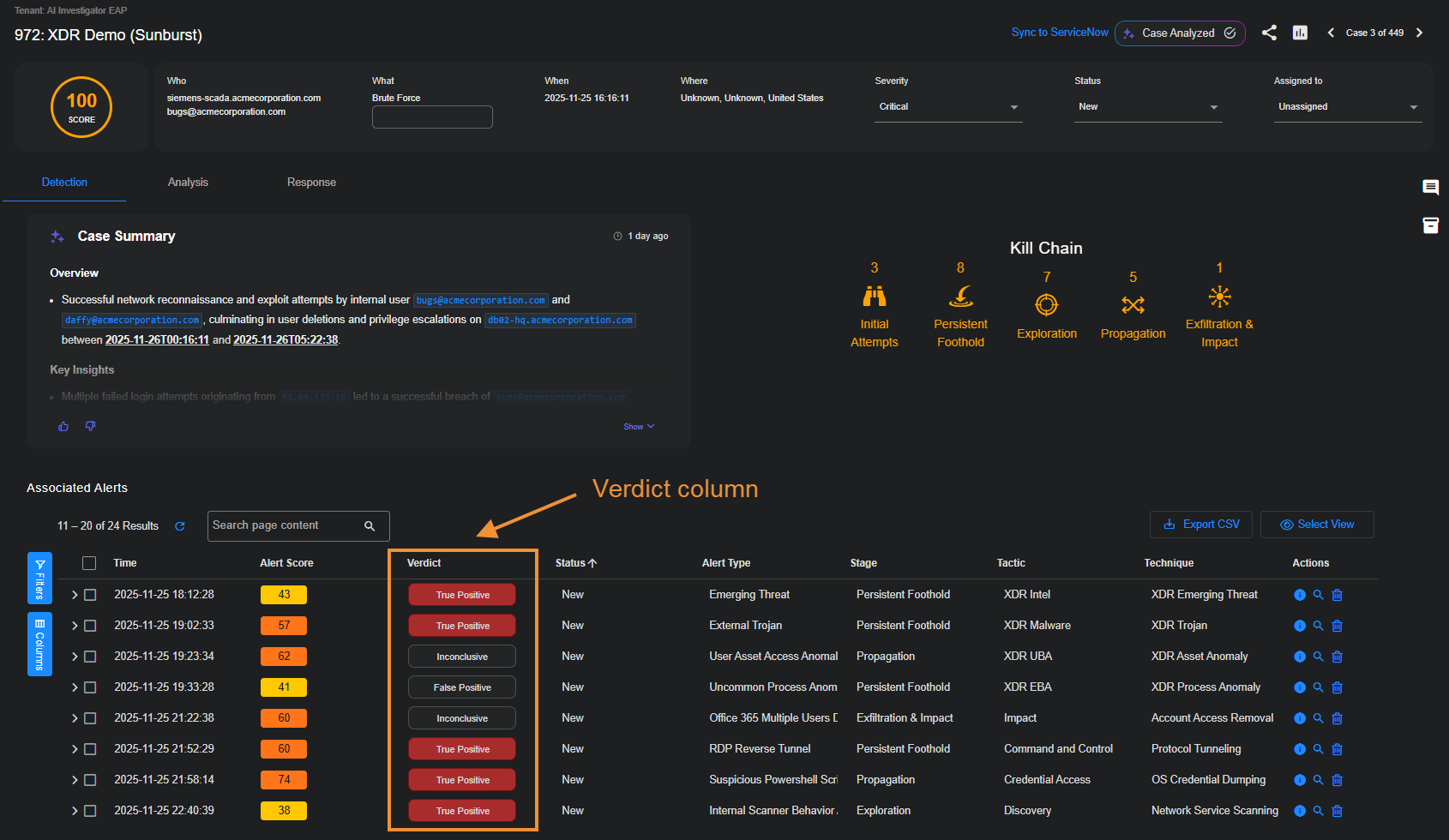
To see the verdicts listed for the alerts associated with the case, open the Detection tab and check the Verdict column in the Associated Alerts table.
-
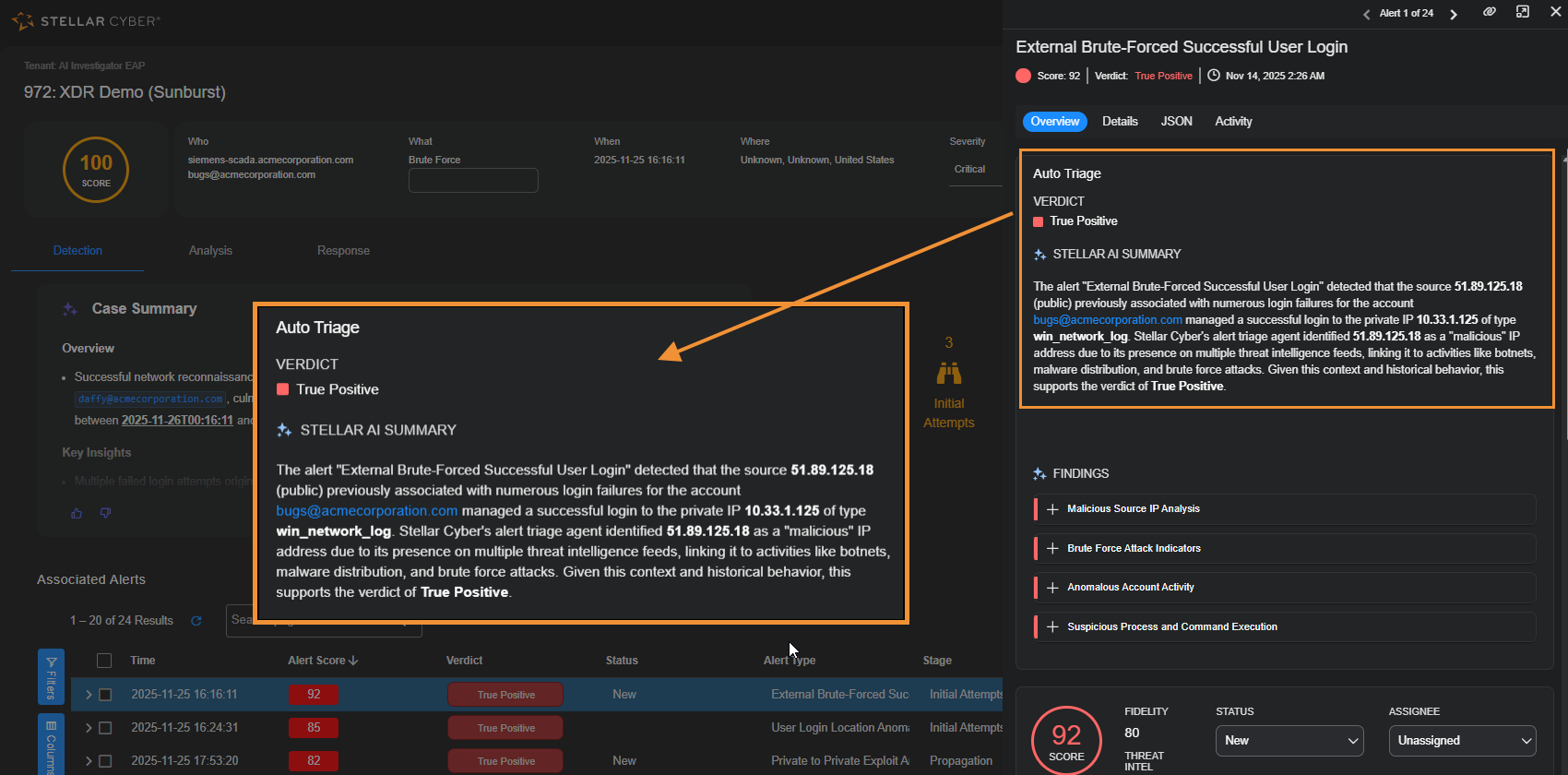
To see details about the verdict for a specific alert, select the More Info
 button in the Actions column.
With the Overview tab active in the Alert Details side panel, you can see the verdict and read a summary about how it was determined.
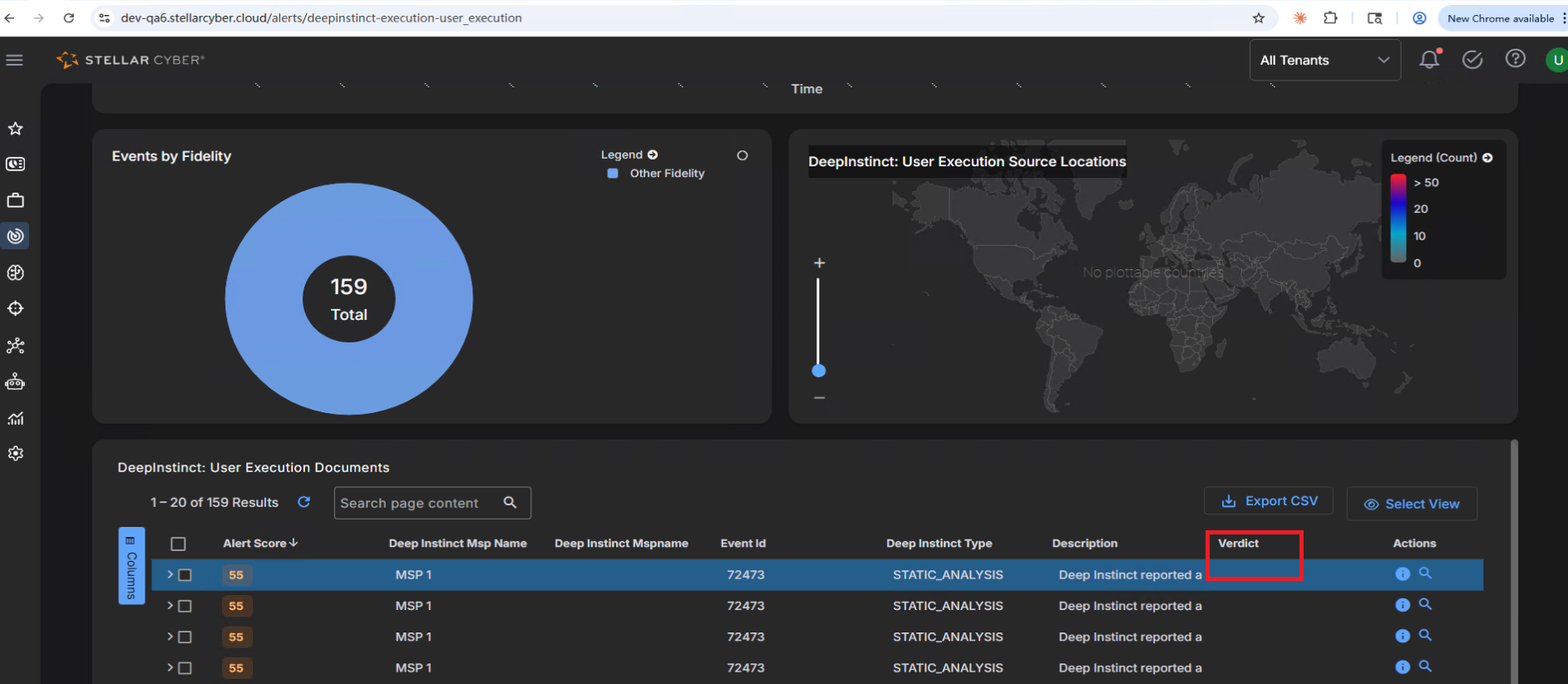
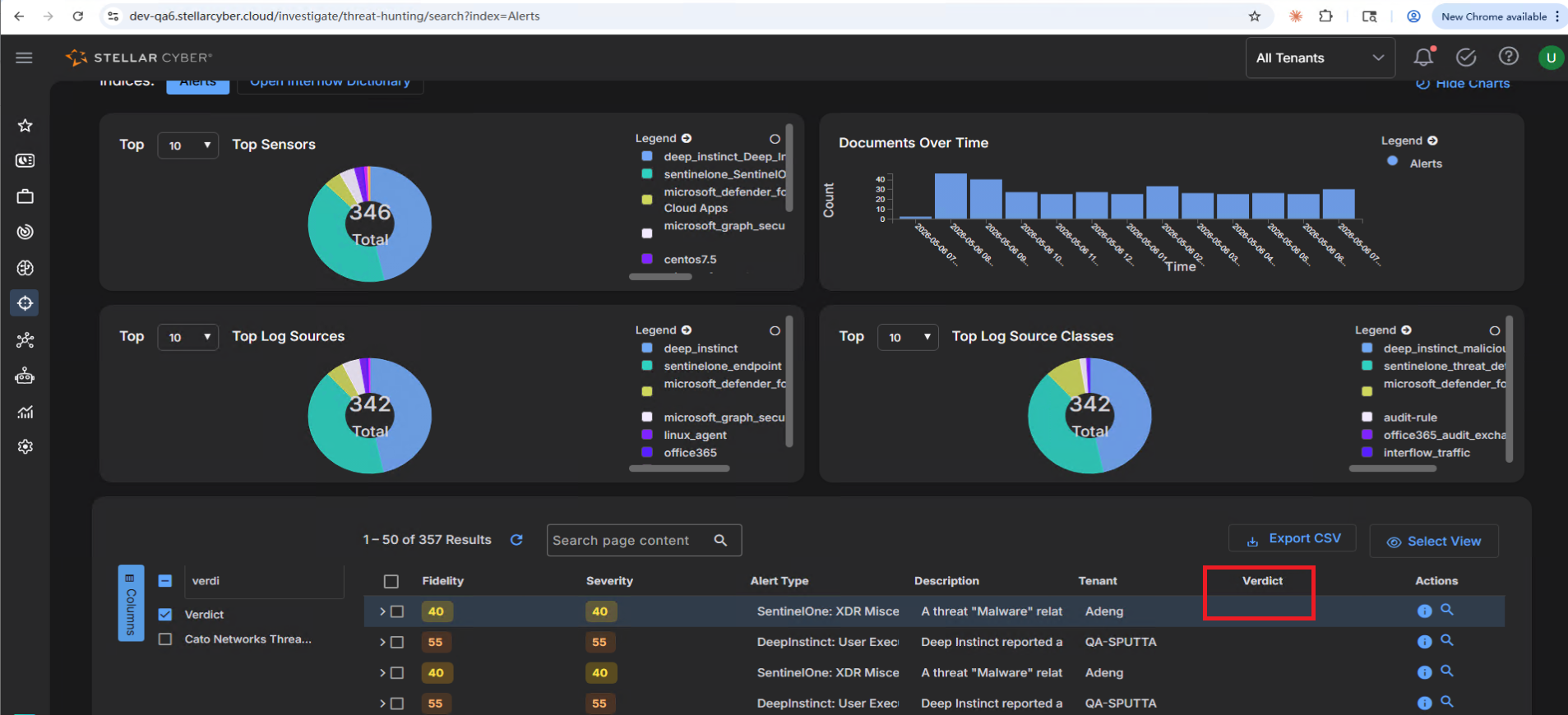
The same verdicts also appear in the Verdict column of the alert occurrences table on the Alert Detail Table page and in the table on the Threat Hunting page, so you can identify triaged alerts and filter by verdict without first opening the case. On both pages, the Verdict column is not shown by default; to display it, select the Columns tool at the side of the table and add the Verdict column. Verdict values appear only on alerts that belong to a triaged case.
How Alert Auto Triage Works
Alert Auto Triage evaluates alerts through a structured sequence of validation checks. These checks apply contextual and behavioral analysis to determine whether an alert indicates a real threat.
The automated workflow includes the following main stages.
1. Input Sources
Alert Auto Triage analyzes data from integrated sources such as the following:
-
Endpoint detection systems, including SentinelOne and Microsoft Defender
-
Identity platforms such as Okta and Entra ID
-
Network and behavioral detections that include observables such as IP addresses, domains, URLs, or file hashes
2. Verdict Signal Checks
Each alert is evaluated through multiple validation checks, such as the following:
-
IP or domain reputation
-
Abnormal process or user behavior
-
Device vulnerability or policy compliance
-
Relationships between entities and previously observed verdicts
Verdict Signal Checks currently cover the following observable types:
|
Observable Type |
Example Sources |
|---|---|
| Process | Process names and behavior from endpoint detection and response (EDR) systems such as SentinelOne and Microsoft Defender |
| Identity | User profiles, activity history, and VIP status from Okta or Microsoft Entra ID |
| Network | IP address reputation, domain and URL lookups, and geolocation |
| File | Hash reputation checks (MD5 and SHA) through threat intelligence feeds |
Only alerts that meet confidence thresholds pass all checks and are promoted for review. This filtering process removes routine or low-value alerts so you can focus on alerts that require investigation.
3. Verdict Assignment
After analysis, the Stellar Cyber Platform assigns a verdict to each alert.
|
Verdict |
Definition |
|---|---|
| True Positive | The alert represents a confirmed malicious or policy-violating activity that requires investigation or response. |
| Benign (True Positive) | The alert correctly detected a behavior that matches a known pattern or anomaly, but the activity is expected or authorized, such as administrative maintenance. |
| False Positive | The alert was triggered by normal or authorized activity that resembles a detection rule or statistical pattern. |
| Inconclusive | The Stellar Cyber Platform found insufficient or conflicting evidence to determine a clear verdict. You should review these alerts to determine if it’s malicious or benign. |
4. Transparent Reasoning
Each alert includes a Findings section in the Overview tab of the Alert Details side panel that lists the validation steps and evidence used in the triage process. This section lets you review how each verdict was determined, including supporting indicators such as malicious reputation, abnormal activity, or anomaly patterns. For a description of the full side panel, see Review Auto Triage Results in the Alert Details Side Panel.
By showing the logic behind every decision, the Stellar Cyber Platform ensures transparency and trust in automated outcomes.
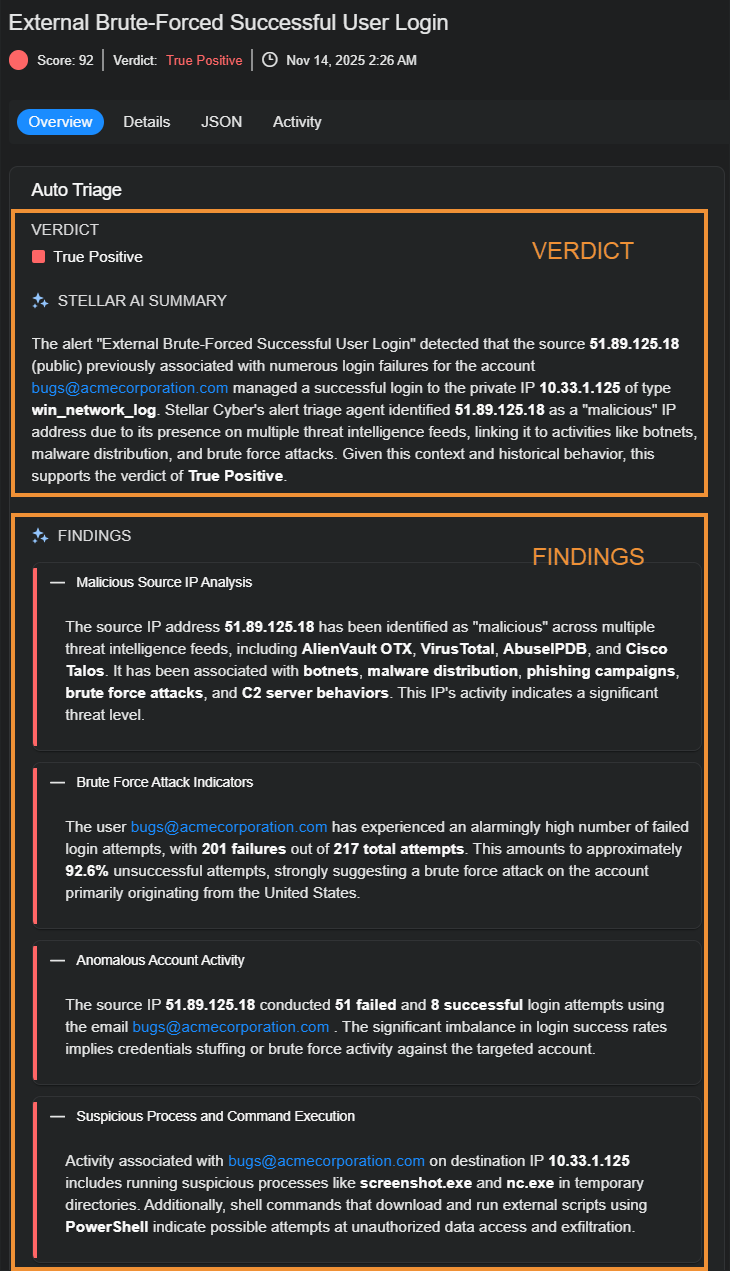
The AI icon  next to Verdict and Findings indicates that these were generated through AI.
5. Human-Augmented Feedback Loop
You can review, confirm, or override verdicts directly within the Stellar Cyber Platform. Overriding an AI-generated verdict is available at the alert level only; you cannot directly override the verdict of a case. However, when the verdicts of alerts within a case are overridden, Stellar Cyber automatically reevaluates the case verdict, ensuring consistency between alert-level feedback and case-level conclusions. This separation ensures scoring remains stable and explainable, while verdicts reflect AI reasoning and human validation.
When you make a correction or add context:
-
The Stellar Cyber Platform records your feedback.
-
The associated validation criteria are adjusted.
-
Future similar alerts are evaluated using the refined criteria.
This feedback loop improves accuracy and allows the Stellar Cyber Platform to align with your operational environment and detection policies.
Review Auto Triage Results in the Alert Details Side Panel
When you select the More Info button for an auto-triaged alert, the Stellar Cyber Platform opens the Alert Details side panel. For a generic auto-triaged alert, this panel presents the verdict and the supporting evidence under the Auto Triage experience, in addition to the standard alert information. To expand the side panel to a full-page view, select the Maximize icon at the top of the panel.
The Alert Details side panel for a generic auto-triaged alert includes the following tabs:
-
Overview: Presents the verdict, the Stellar AI Summary, and the Findings generated by Auto Triage. In the Findings section, Finding tags help you quickly identify the observable under analysis and the type of validation check used for each finding. The Overview tab also includes the score and status details, the MITRE ATT&CK classification, the Key Fields, and any associated cases.
-
Details: Lists the complete set of alert fields and their values.
-
Response: Lets you take a response action on the alert without leaving the side panel. For more information, see Take a Response Action from the Alert Details Side Panel.
-
JSON: Presents the complete alert record in JSON format.
-
Activity: Records the actions taken on the alert. The All, Comments, and History views let you review analyst comments and system-generated updates, including any response actions taken from the Response tab.
For a rule-based alert, the side panel also includes a Rules tab between the Details and Response tabs. This tab shows the detection rule that generated the alert, including the rule metadata and the Sigma rule definition. The Rules tab does not appear for alerts that are not generated by a rule, such as machine learning or anomaly detections.
The Alert Details side panel for a generic auto-triaged alert differs from the panel for a User Reported Phishing Email Alerts alert. The phishing-email panel includes an Observables tab for the artifacts extracted from the email, whereas the generic alert panel includes the Details and Response tabs instead.
Stellar AI Summary and Findings
On the Overview tab, the Stellar AI Summary provides a brief, plain-language description of what the alert detected and why Auto Triage assigned the verdict. The Findings section lists the individual validation checks that contributed to the verdict, each supported by the evidence and signals that the Stellar Cyber Platform evaluated. Select a finding to expand it and review the supporting detail.
The details in the Findings tab include Finding tags that identify the observable type, such as User, IP, Domain, URL, File, Process, or Email, and the finding category, such as Threat Intel, User behavior, Process behavior, Cohort analysis, Compliance check, or Enrichment. These tags help you quickly understand what Auto Triage evaluated and how it evaluated it.
Take a Response Action from the Alert Details Side Panel
From the Response tab, you can act on a verdict without leaving the Alert Details side panel, rather than navigating to another page to respond. Each section on the Response tab is collapsed by default. Select a section to expand it and configure the action.
The Response tab groups the available actions into the following categories:
-
Custom Response — Provides Trigger an Email, Add an Alert Filter, and Sync to ServiceNow.
-
External Responses — Provides the external actions that the Stellar Cyber Platform can run through your configured connectors, such as Run a Script. An individual action appears and is selectable only when its supporting connector is configured and the alert contains the fields that the action requires. For the complete set of external actions and the connector and field requirements for each one, see the External Actions table in Understanding Event Details.
Each response action you take is recorded on the Activity tab under History.
AI Processing and Data Flow
The following diagram shows how the Stellar Cyber AI Backend Services process alert telemetry within the Stellar Cyber Data Platform and interact with external AI and enrichment services while protecting sensitive data.
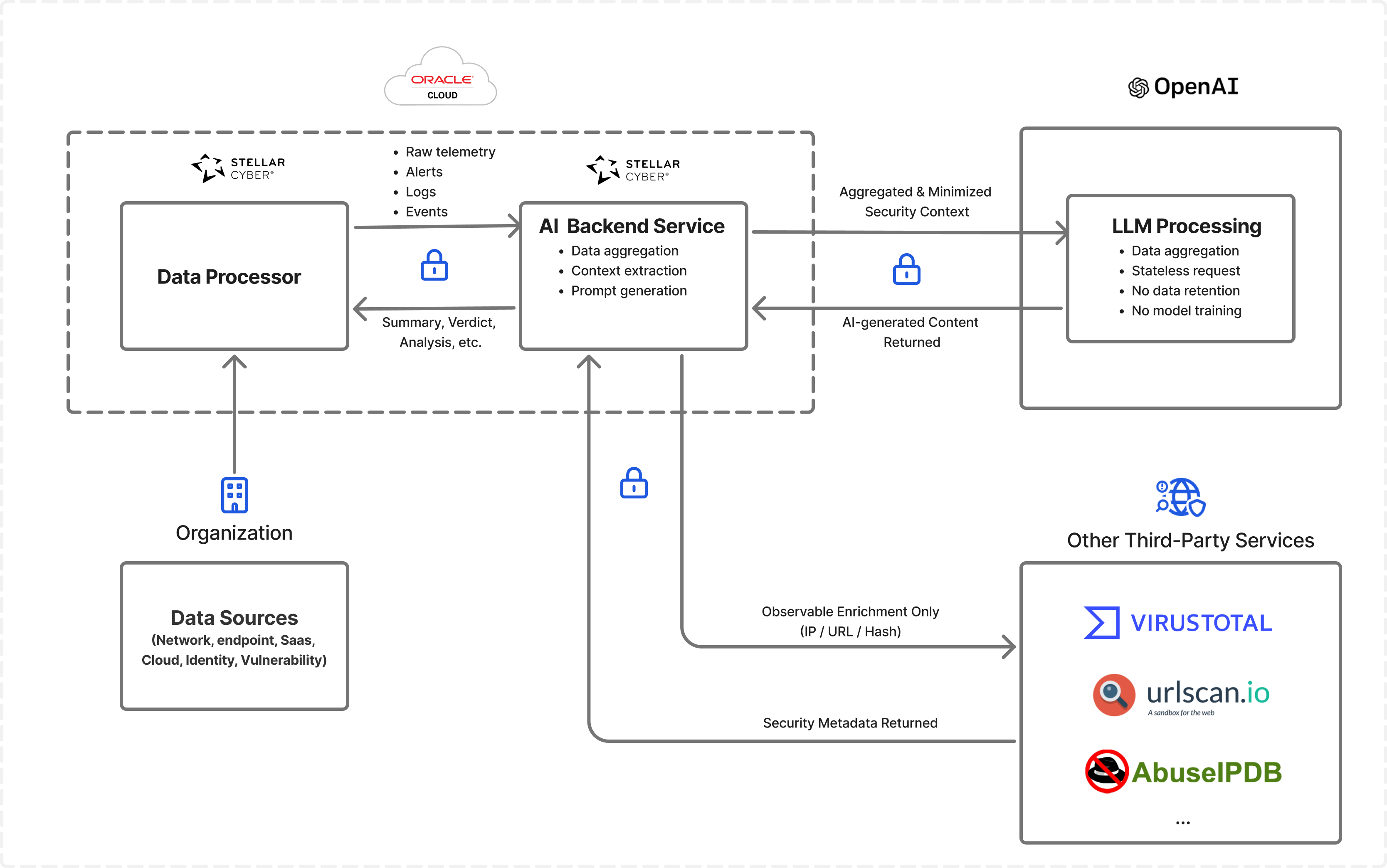
All raw telemetry—including alerts, logs, and events—remains within the Stellar Cyber Data Platform deployed in your regional Oracle Cloud Infrastructure (OCI) environment. The Stellar Cyber AI Backend Services analyze this telemetry locally to extract relevant context and prepare requests for AI-assisted analysis.
Processing Workflow
The workflow shown in the diagram proceeds through the following stages.
-
The Stellar Cyber AI Backend Services analyze telemetry stored in the Stellar Cyber Data Platform.
The services examine alert records, logs, and related telemetry associated with the alert. During this stage, the services aggregate relevant information, extract key security indicators, and assemble the context needed to understand the alert. The services also minimize or remove sensitive details before preparing a prompt for AI analysis.
-
The Stellar Cyber AI Backend Services generate a structured prompt for LLM Processing.
After analyzing and summarizing the alert context, the services construct a prompt that captures the essential security information needed for AI analysis. This prompt contains aggregated and minimized context rather than raw telemetry. By preparing the prompt in this way, Stellar Cyber ensures that only the information required for analysis is transmitted outside the Stellar Cyber Data Platform.
-
The Stellar Cyber AI Backend Services send the prompt to LLM Processing through an encrypted API request.
The services transmit the request securely to an external Large Language Model (LLM). Stellar Cyber does not transmit raw logs, full telemetry streams, or other sensitive operational data to the LLM. Instead, the request contains only the summarized and minimized context necessary for the model to generate meaningful analytical output.
-
LLM Processing analyzes the request and generates a response.
The LLM evaluates the prompt and produces AI-generated content such as summaries, contextual explanations, or potential verdict suggestions related to the alert. The LLM processes each request in a stateless manner. It does not retain the submitted data and does not use the request for model training.
-
The Stellar Cyber AI Backend Services receive the AI-generated response and integrate it into the Stellar Cyber Data Platform.
After the LLM returns its response, the services associate the generated analysis with the relevant alert or investigation workflow. This integration allows you to review AI-generated summaries and analysis directly within the Stellar Cyber Platform while investigating alerts or reviewing cases.
-
The Stellar Cyber AI Backend Services can also query external enrichment providers.
In addition to LLM Processing, the services can query threat intelligence and reputation providers represented in the diagram as Other Third-Party Services. These services include providers such as VirusTotal, URLscan, and AbuseIPDB. When Stellar Cyber queries these third-party services, it sends only specific observables—such as IP addresses, URLs, or file hashes—to retrieve additional context about the alert. Raw telemetry and operational data remain within the Stellar Cyber Data Platform.
Override Verdicts
You can review automated verdicts and override them when necessary to provide corrective feedback. This process maintains your control and contributes to continuous learning in the Stellar Cyber Platform.
Stellar Cyber recommends prioritizing alerts marked as True Positive or Inconclusive.
To review or override a verdict:
-
Navigate to Cases and select a case name to open the case details.
-
In the Associated Alerts table, select the More Info icon at the right end of the row of a specific alert.
-
In the Overview tab, review the Findings section to see the reasoning behind the verdict and the evidence used.
-
If you determine that the verdict is incorrect, expand the Verdict drop-down list and choose the correct one.
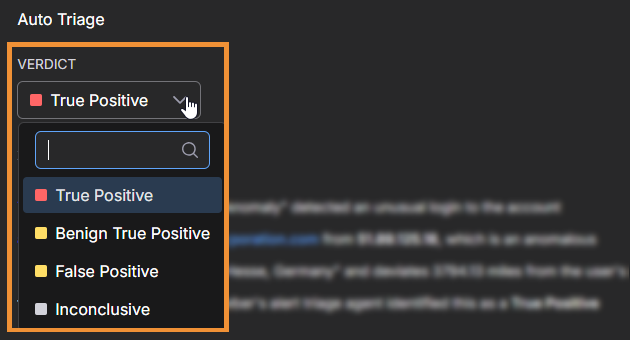
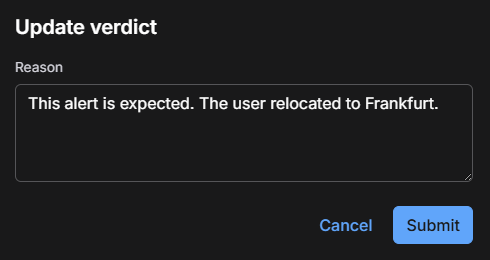
You’re then prompted to provide a reason for the change and submit it.
-
Optionally enter a reason for changing the verdict and then select Submit.
Providing a reason for the change is optional, but doing so helps preserve your decision for tracking purposes and future reference.
-
To see the AI-generated verdict that was modified, hover your cursor over Updated by user.
A pop-up appears noting the change of verdicts.
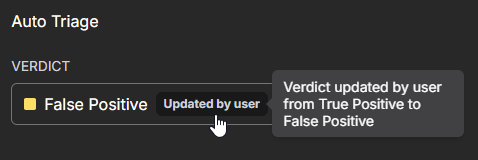
All overrides are logged and auditable and might be surfaced in reporting.
When you override a verdict, Stellar Cyber incorporates that feedback into future evaluations, gradually improving the accuracy of automated triage.
Best Practices
Before fully automating alert triage, begin with limited deployment and build confidence in the results over time. Use a gradual, feedback-driven approach by enabling auto triage for cases with a smaller set of alerts, closely reviewing the outcomes, and providing feedback regularly.
For example, you can start with critical alerts only, review the assigned verdicts for a week, and then expand automation to include high severity alerts once you are satisfied with the accuracy.
Follow these best practices to maximize the value of Alert Auto Triage:
-
Start with a few critical and high severity alerts before expanding to others.
-
Regularly review False Positive and Inconclusive alerts to provide feedback that refines future verdicts.
Privacy and Data Handling
For privacy considerations, see the OpenAI Privacy Policy.
Alert Auto Triage processes data securely in compliance with Stellar Cyber privacy and security standards. Case data is used only for analysis and summary generation and is never used for model training.
The AI service is hosted in the United States and operates under the Stellar Cyber enterprise OpenAI license. All communication between the Stellar Cyber Platform and the AI service occurs through the Stellar Cyber secure, auditable API layer. Data is transmitted only for the duration of the analysis request and is not stored or reused after processing.
Furthermore, there is no risk of data contamination between tenants for LLM-driven features in the Stellar Cyber Platform. All AI interactions are executed within a strictly tenant-isolated architecture. Each request is scoped to the data context of a single tenant, processed independently, and terminated at the end of the request lifecycle. Data is never shared, cached, reused, or exposed across tenants at any stage of processing.
