Configuring Object-Level Sharing and Access Control
Object-Level Sharing and Access Control  enables you to assign granular access permissions to user-created objects in the Stellar Cyber Platform. This feature lets you control who can view (read-only) or edit (read/write) shared content. You can share an object with individual users, with all users of a tenant, or with all users of the tenants in a tenant group. In this release, Object-Level Sharing and Access Control applies to custom dashboards.
This feature enhances collaboration and security by letting you share objects selectively within your organization while maintaining control over who can modify or redistribute them. It also helps protect proprietary or sensitive configurations by restricting access to authorized users only.
If you are a root user with Super Admin privileges, you can configure the default sharing permissions globally in System | Settings and sharing permissions individually for each custom dashboard.
Global Default Access Settings
Global default access settings define how access control lists (ACLs) behave for all new or existing custom dashboards that do not have specific sharing rules applied.
To configure the global settings:
-
Navigate to System | ORGANIZATION MANAGEMENT | Settings.
-
Locate the Object-ACL (Access Control List) Settings section.

-
Select the default sharing mode:
Default Deny – Only the object owner has access to the object unless additional users are explicitly granted permissions.
Default Allow – All users with appropriate role-based access control (RBAC) privileges have Reader access to all objects unless otherwise specified.
When upgrading to version 6.2, Stellar Cyber defaults to Default Allow to preserve existing access behavior. You can switch to Default Deny to enforce stricter data and configuration security.
Dashboards created or modified after changing this setting inherit the new default behavior unless explicitly configured otherwise.
Users with Super Admin privileges in RBAC can bypass all object-level access controls. This ensures that administrators with full system authority retain access to all user-created objects regardless of individual sharing settings.
Sharing Custom Dashboards
You can share a custom dashboard with individual users, with all users of a tenant, or with all users of the tenants in a tenant group, and assign each recipient Editor access or Reader access. Dashboard-specific settings override global defaults.
To configure sharing for a dashboard, you must have the following privileges and permissions:
-
Super Admin privileges: When you're logged in with a Super Admin account, you have permission to share any custom dashboard.
or
-
Security Admin or Platform Admin privileges: When you're logged in with either a Security Admin account or Platform Admin account—and you have RBAC privileges to create custom dashboards—you can share any custom dashboard you created because you automatically have Owner permissions, or you can share any dashboard to which you've been given Editor permissions by another user.
To configure sharing for a dashboard:
-
Go to Dashboards | Custom.
-
Select a custom dashboard.
-
Select Share or Open in Visualizer | Share.
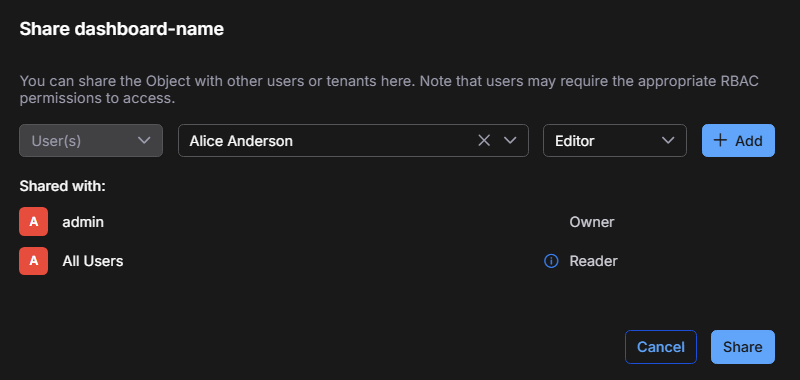
The Share dialog box displays the following information:
-
Shared with – The users, tenants, and tenant groups that currently have access to the dashboard, and their privilege roles: Owner, Editor, or Reader. The owner is the one who created the dashboard. Owners have full control, including editing, sharing, and ownership transfer. Ownership cannot be removed and must be transferred to another active user when an owner account is deleted.
-
Recipient type – The type of recipient that you grant access to. Select one of the following:
User(s) – Grants the role to one or more named individuals.
Tenant(s) – Grants the role to all users of one or more tenants.
Tenant Group(s) – Grants the role to all users of all the tenants in one or more tenant groups.
-
Role – The access that you grant to the recipient. Assign one of the following roles:
Editor – Can view the dashboard and modify both its contents and its access control list, including sharing it with other recipients.
Reader – Can view the dashboard but cannot edit or share it.
-
-
Select the recipient type—User(s), Tenant(s), or Tenant Group(s)—choose the recipient, and select a role (Editor or Reader). For example:
-
To grant access to one person, select User(s) and choose a user.
-
To grant access to everyone in a tenant, select Tenant(s) and choose a tenant.
-
To grant access to everyone in the tenants of a tenant group, select Tenant Group(s) and choose a tenant group.
-
-
Select + Add to add the recipient. Repeat as needed to add more recipients.
-
Select Share to apply the settings.
Stellar Cyber immediately updates the ACL for the dashboard. All assigned recipients see the shared dashboard listed in their dashboard library according to their permissions.
Access Rules by Recipient Type
How access is granted depends on the recipient type of each access control list entry:
-
User – Grants the role to one named user.
-
Tenant –
 Grants the role to all users of the selected tenant. The dashboard is also accessible to root users with Super Admin privileges and to partners whose tenant group contains that tenant.
 -
Tenant Group –
Grants the role to all users of all the tenants in the selected tenant group. Membership is transitive: if a tenant is added to the group later, the users of that tenant inherit the existing access automatically. The dashboard is also accessible to root users with Super Admin privileges and to partners whose tenant group is the selected group.
A root user who does not have Super Admin privileges is not granted access through a Tenant or Tenant Group entry. A non-Super-Admin root user gains access only when they are explicitly assigned as the Owner, an Editor, or a Reader of the dashboard.
Protections Against Misconfiguration
To prevent accidental misconfiguration, the access control list enforces the following protections:
-
If you are not a root user and you edit the access control list, any entries that are not visible to you are preserved. In short, you cannot edit or remove an entry that you cannot see. For example, if a root user shared a dashboard with a tenant that you are not entitled to see, that entry remains in place when you edit the list.
-
You can add only entries that point to subjects that you can already access. This prevents granting access beyond your own scope. For example, a partner with Editor access cannot add a tenant group that contains tenants outside the tenant group to which that partner belongs; Stellar Cyber rejects the request.
-
You can adjust or remove only your own visible entry. For example, a tenant user with Editor access can change their own role to Reader or remove themselves from the recipient list.
Root users and dashboard owners can use the full Share dialog box to add, edit, and remove entries. Recipients who are neither a root user nor the owner do not see the controls to add entries, but they can edit or remove entries that are visible to them.
