Configuring Check Point Smart-1 Cloud Connectors
You can connect Stellar Cyber to the Check Point Smart-1 Cloud firewall so that you can quickly and easily implement firewall rules from within Stellar Cyber, while you are threat hunting. You can configure firewall actions or manually trigger a firewall action from the event display.
This responder supports blocking/unblocking IP addresses across gateways managed by Check Point Smart-1 Cloud by manipulating host objects and groups referenced in firewall access policies.
Connector Overview: Check Point Smart-1 Cloud
Capabilities
-
Collect: No
-
Respond: Yes
-
Native Alerts Mapped: No
-
Runs on: DP or Sensor
-
Interval: N/A
Collected Data
N/A
Domain
|
<Base URL> where <Base URL> is a variable from the configuration of this connector |
Response Actions
|
Action |
Required Fields |
|---|---|
|
|
Third Party Native Alert Integration Details
N/A
Required Credentials and Configurations
-
Base URL, Cloud Management ID, API Key, Source IP Group Name, Destination IP Group Name, and Policy Package Name
Adding a Check Point Smart-1 Cloud Connector
To add a Check Point Smart-1 Cloud firewall connector:
Obtaining Check Point Smart-1 Cloud Credentials
Before you configure the connector in Stellar Cyber, you must obtain the following Check Point Smart-1 Cloud firewall credentials:
-
Base URL—The Smart-1 Cloud Management API host URL used for API access. See Obtaining Base URL.
-
(Optional) Port—The HTTPS port number for the Check Point Management API. The default is 443.
-
Cloud Management ID—The unique identifier for your cloud-hosted security management instance. See Obtaining Cloud Management ID.
-
API Key—The authentication credentials. See Generating the API Key.
-
Source IP Group Name—The name of the existing group used as the source address group in the access policy rule. See Obtaining Source IP Group Name.
-
Destination IP Group Name—The name of the existing group used as the destination address group in the access policy rule. See Obtaining Destination IP Group Name.
-
Policy Package Name—The name of the policy package that contains the access layer and access rules referencing the source or destination IP groups. See Obtaining Policy Package Name.
Prerequisites
Make sure that the source/destination IP group exists in the Check Point Smart-1 Cloud and is referenced by blocking rules in the access rulebase.
Make sure that the policy package exists, and there are access rules inside the policy package's access layer that reference the source/destination IP group.
Stellar Cyber will check if the group or policy exists, but will not create one if it is not found.
Obtaining Base URL
Follow the guidance in the Check Point Management & Smart-1 Cloud Administration Guide under Using the Settings. See To use the Management API settings.
To get started, in the Web SmartConsole navigate to Settings > API & SmartConsole.
In the Management API section, copy the Web request structure.
In the following example:
https://<MAAS-HOST>/<DOMAIN-UID>/web_api
enter the full URL, including https://.
This value is the Base URL used by the connector.
Obtaining Cloud Management ID
To get started, in the Web SmartConsole navigate to Settings > API & SmartConsole.
Copy the value shown in the API URL path after the host and before /web_api.
In the following example:
https://<MAAS-HOST>/<DOMAIN-UID>/web_api
enter only:
<DOMAIN-UID>
This value is the Cloud Management ID used by the connector.
Generating the API Key
Follow the guidance in the Check Point Management & Smart-1 Cloud Administration Guide under Best Practices. See Step 1 - Generate an API Key.
To get started, in the Web SmartConsole navigate to Settings > API & SmartConsole.
In the Management API section, click Generate.
Obtaining Source IP Group Name
Follow the guidance in the R81 Quantum Security Management Administration Guide under Creating an Access Control Policy. See the Source and Destination Columns of the Access Control Policy Rule Base.
Find the access rule used for blocking source IP addresses. Copy the group object name shown in the Source column.
Obtaining Destination IP Group Name
Follow the guidance in the R81 Quantum Security Management Administration Guide under Creating an Access Control Policy. See the Source and Destination Columns of the Access Control Policy Rule Base.
Find the access rule used for blocking destination IP addresses. Copy the group object name shown in the Destination column.
Obtaining Policy Package Name
Follow the guidance in the R81 Quantum Security Management Administration Guide under Managing Policies. See Working with Policy Packages.
To get started, in the Web SmartConsole navigate to Menu > Manage policies and layers.
Find the policy package that contains the relevant Access Control policy type and access rules, then copy the policy package name.
Adding the Connector in Stellar Cyber
To add a Check Point Smart-1 Cloud firewall connector in Stellar Cyber:
-
Log in to Stellar Cyber.
-
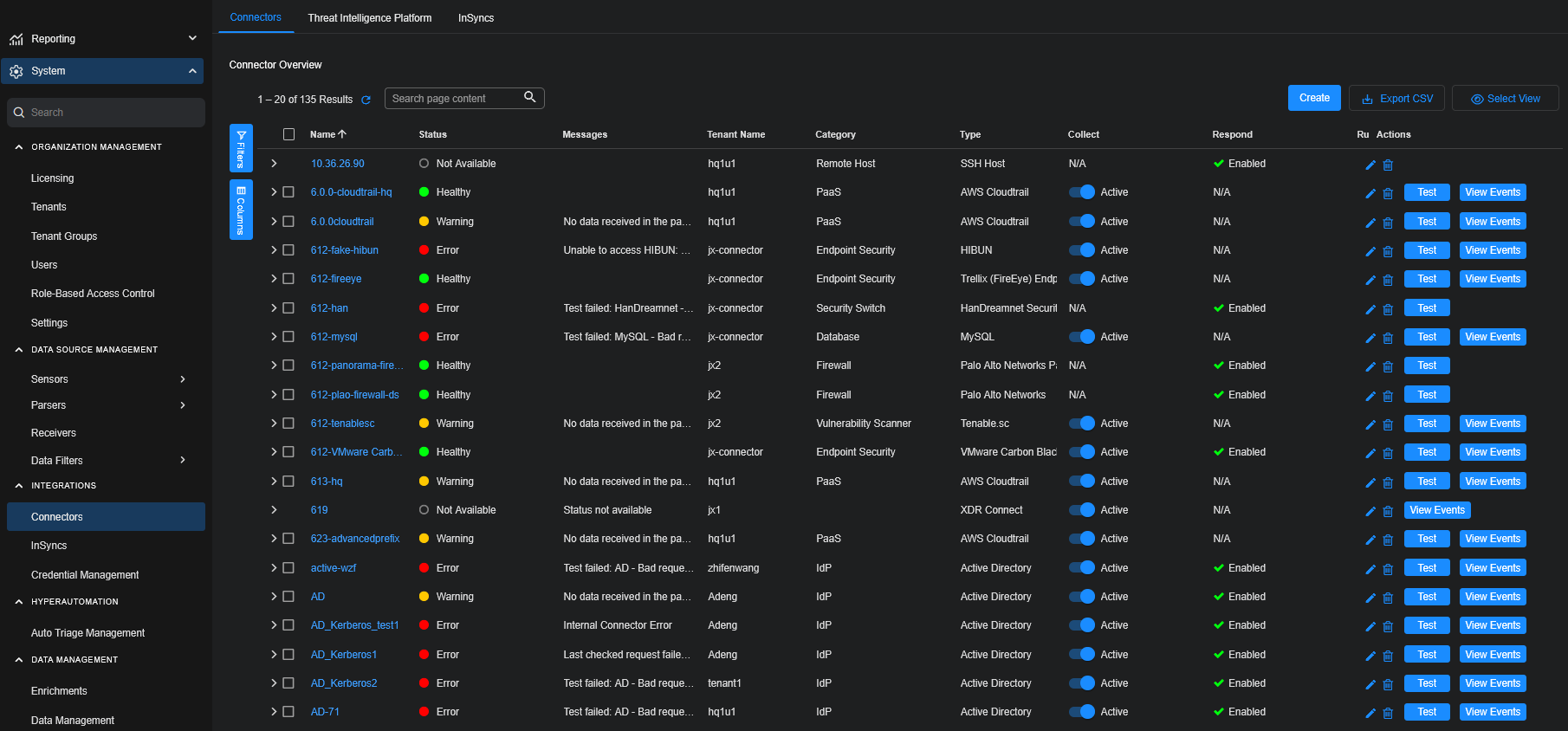
Click System | INTEGRATIONS | Connectors. The Connector Overview appears.
-
Click Create and select Connector.
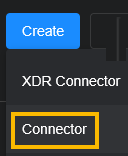
The General tab of the Add Connector screen appears. The information on this tab cannot be changed after you add the connector.
-
Choose Firewall from the Category dropdown.
-
Choose Check Point Smart-1 Cloud from the Type dropdown.
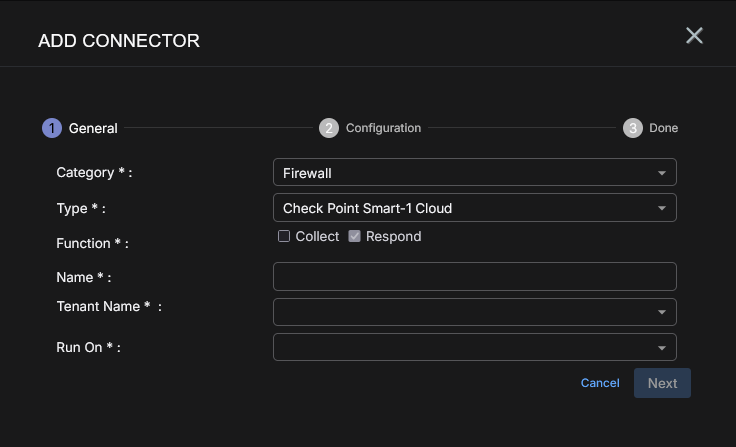
The asterisk (*) indicates a required field.
-
For this connector, the supported Function is Respond, which is enabled already.
-
Enter a Name.
Notes:- This field does not accept multibyte characters.
- It is recommended that you follow a naming convention such as tenantname-connectortype.
-
Choose a Tenant Name. The Interflow records created by this connector include this tenant name.
-
Choose the device on which to run the connector.
-
Click Next. The Configuration tab appears.
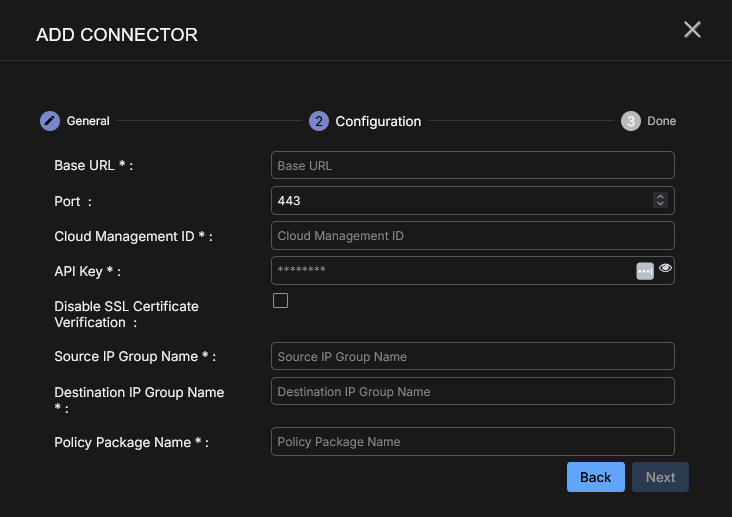
The asterisk (*) indicates a required field.
-
Enter the Base URL you noted above in Obtaining Check Point Smart-1 Cloud Credentials.
-
(Optional) Enter the Port. The default is 443.
-
Enter the Cloud Management ID you noted above.
-
Enter the API Key you noted above.
-
(Optional) Click Disable SSL Certificate Verification if you want to disable SSL certificate verification. Disable SSL certificate verification only if you have a specific reason to, as disabling it is not a good security practice and may expose the connection to security risks.
-
Enter the Source IP Group Name you noted above.
-
Enter the Destination IP Group Name you noted above.
-
Enter the Policy Package Name you noted above.
-
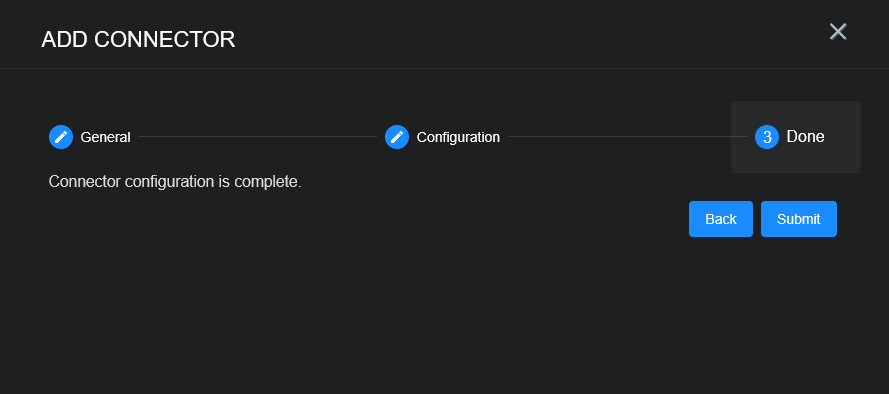
Click Next. The final confirmation tab appears.
-
Click Submit.
The new firewall connector is immediately active.
Testing the Connector
In addition to testing for connectivity, the Test button for the Check Point Smart-1 Cloud connector tests whether the login succeeds with the provided API Key and Base URL, whether the Source/Destination IP Group Name exists, whether the Policy Package Name exists, whether the Policy Package's access layers include rules that use the Source IP Group Name as the source address and the Destination IP Group Name as the destination address.
When you add (or edit) a connector, we recommend that you run a test to validate the connectivity parameters you entered. The test validates authentication and connectivity.
For connectors running on a sensor, Stellar Cyber recommends that you allow 30-60 seconds for new or modified configuration details to be propagated to the sensor before performing a test.
-
Click System | INTEGRATIONS | Connectors. The Connector Overview appears.
-
Locate the connector by name that you added, modified, or that you want to test.
-
Click Test at the right side of that row. The test runs immediately.
Note that you may run only one test at a time.
Stellar Cyber conducts a basic connectivity test for the connector and reports a success or failure result. A successful test indicates that you entered all of the connector information correctly.
To aid troubleshooting your connector, the dialog remains open until you explicitly close it by using the X button. If the test fails, you can select the button from the same row to review and correct issues.
The connector status is updated every five (5) minutes. A successful test clears the connector status, but if issues persist, the status reverts to failed after a minute.
Repeat the test as needed.
 Display sample messages...

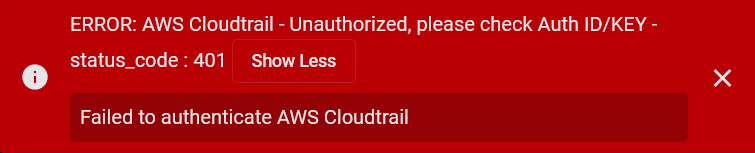
If the test fails, the common HTTP status error codes are as follows:
| HTTP Error Code | HTTP Standard Error Name | Explanation | Recommendation |
|---|---|---|---|
| 400 | Bad Request | This error occurs when there is an error in the connector configuration. |
Did you configure the connector correctly? |
| 401 | Unauthorized |
This error occurs when an authentication credential is invalid or when a user does not have sufficient privileges to access a specific API. |
Did you enter your credentials correctly? Are your credentials expired? Are your credentials entitled or licensed for that specific resource? |
| 403 | Forbidden | This error occurs when the permission or scope is not correct in a valid credential. |
Did you enter your credentials correctly? Do you have the required role or permissions for that credential? |
| 404 | Not Found | This error occurs when a URL path does not resolve to an entity. | Did you enter your API URL correctly? |
| 429 | Too Many Requests |
This error occurs when the API server receives too much traffic or if a user’s license or entitlement quota is exceeded. |
The server or user license/quota will eventually recover. The connector will periodically retry the query. If this occurs unexpectedly or too often, work with your API provider to investigate the server limits, user licensing, or quotas. |
For a full list of codes, refer to HTTP response status codes.
