Configuring Sophos XG Firewall Connectors
 Learn more at Stellar Cyber Academy.
The following link takes you to a course on the Stellar Cyber Academy technical training portal where you can learn more about this topic by watching the suggested lessons.
M07 Open XDR Connector - Sophos Firewall (01h:47m)
 Introduction (06m:00s)
Get introduced to configuring, testing, and validating a firewall connector using a Sophos firewall within the Stellar Cyber Platform. Understand the essentials of setting up IP host groups and firewall rules, as well as configuring API communication for firewall management.
Overview (14m:00s)
Learn where connectors fit into the Stellar Cyber Platform network architecture. Explore the capabilities of various connectors, including data collection and response actions, and understand how connectors enable communication with firewalls, Active Directory, and other technologies.
Connector Configuration (38m:00s)
Configure the Sophos firewall connector by setting up host groups, firewall rules, and enabling API access in the Stellar Cyber Platform. Follow each step of the configuration process, from establishing firewall rules to entering API settings, and learn how to create and configure the connector to interact securely with the Sophos firewall for threat response actions. Watch a full demonstration reinforcing each stage of the workflow to build confidence in deploying the connector in a live environment.
Connector Testing (12m:00s)
Test the Sophos firewall connector to confirm successful communication with the Stellar Cyber Platform. Validate API settings, verify connectivity, and follow a demonstration of the testing process to ensure the connector is fully operational. View logs to confirm the connector is ready for use in your environment.
Connector Verification - Respond Action (40m:00s)
Verify the functionality of the firewall connector by manually using the respond action to block and unblock IP addresses within the Stellar Cyber Platform. Learn how administrators and SOC analysts can manage firewall rules dynamically, and watch real-time changes to firewall rules and connectivity as you follow along with hands-on demonstrations of the full block and unblock workflow.
Connector Verification - Interflow Detail Action (20m:00s)
Discover how to use Interflow detail actions to automate firewall rules based on Interflow records within the Stellar Cyber Platform. Follow a practical demonstration that shows how SOC analysts can efficiently block IP addresses by linking Interflow data to firewall actions, simplifying threat response without manual intervention.
Connector Verification - ATH Action (35m:00s)
Discover how to configure automated threat hunting (ATH) actions within the firewall connector on the Stellar Cyber Platform, enabling automated IP blocking based on predefined criteria without manual intervention. Follow along with a hands-on demonstration that walks through setting up ATH playbooks to trigger automatic firewall responses, showcasing how the platform ties threat intelligence and machine learning-driven detections to advanced automated response capabilities.
The first time you access a link on the portal during a session, you must log in to access content.
You can connect Stellar Cyber to firewalls so that you can quickly and easily implement firewall rules on those firewalls from within Stellar Cyber, while you are threat hunting. You can configure firewall actions or manually trigger a firewall action from the event display. For either action you must already have your firewall connected.
Connector Overview: Sophos XG Firewall
Capabilities
-
Collect: No
-
Respond: Yes
-
Native Alerts Mapped: No
-
Runs on: DP or Sensor
-
Interval: N/A
Collected Data
N/A
Domain
|
https://<Device IP Address>:<Device Port> where <Device IP Address> and <Device Port> are variables from the configuration of this connector |
Response Actions
|
Action |
Required Fields |
|---|---|
|
|
Third Party Native Alert Integration Details
N/A
Required Credentials and Configurations
-
User Name, Password, Device IP Address, Source IP Group, Destination IP Group, and Device Port
Connecting a Sophos XG Firewall Connector
To connect a Sophos XG firewall:
- Create IP host groups and add them to firewall deny rules in Sophos XG
- Enable API configuration
Check Enable
In Allowed IP address, enter the source IP address of the device making the API calls, for example, the local Stellar Cyber sensor IP address
Give enough permissions (or all permissions) to get the address group list.
- Enable API configuration
- Add the connector in Stellar Cyber
- Test the connector
Adding the Connector in Stellar Cyber
To add a new Sophos XG firewall connector in Stellar Cyber:
-
Log in to Stellar Cyber.
-
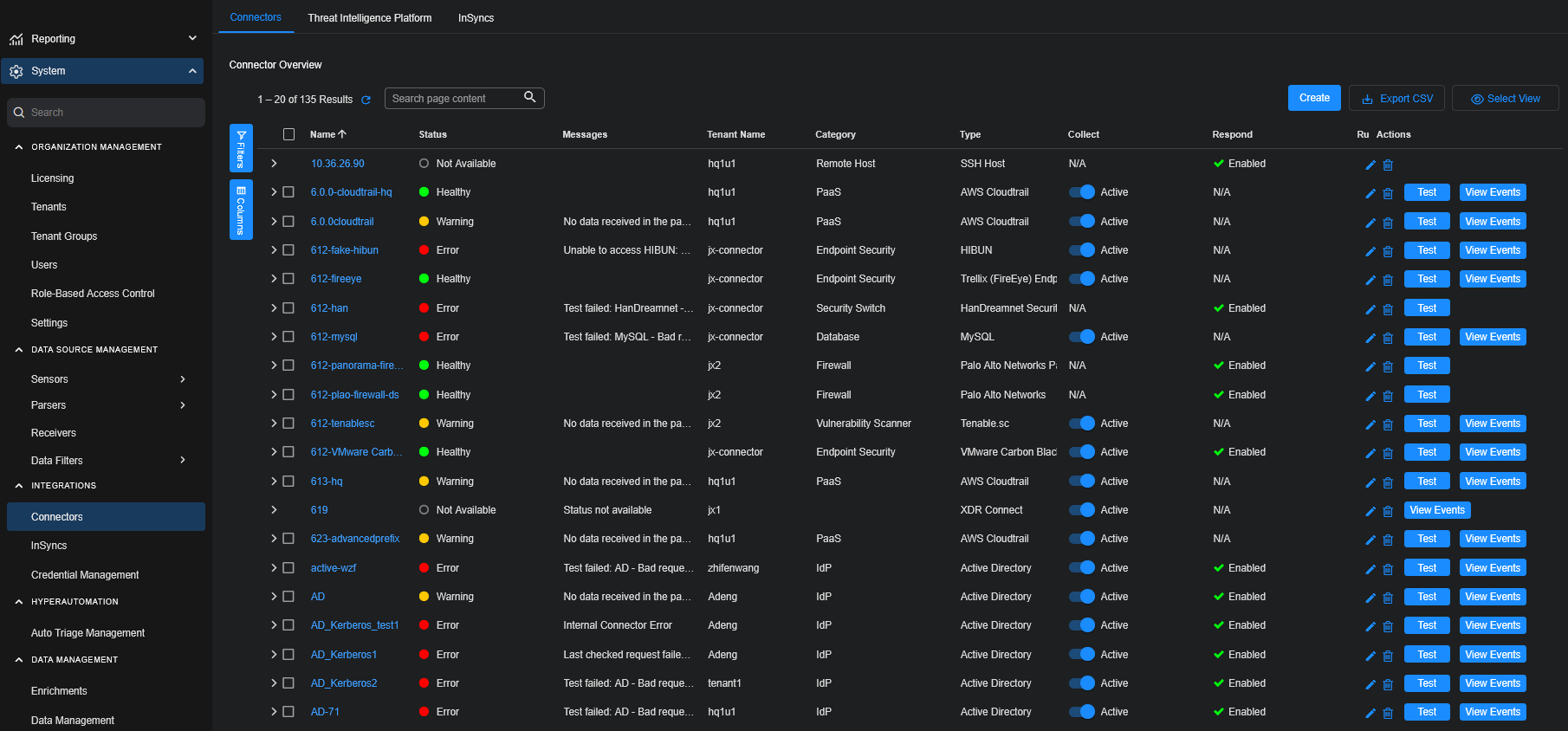
Click System | INTEGRATIONS | Connectors. The Connector Overview appears.
-
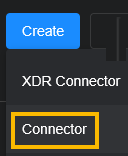
Click Create and select Connector.
The General tab of the Add Connector screen appears. The information on this tab cannot be changed after you add the connector.
-
Choose Firewall from the Category dropdown.
-
Choose Sophos XG Firewall from the Type dropdown.
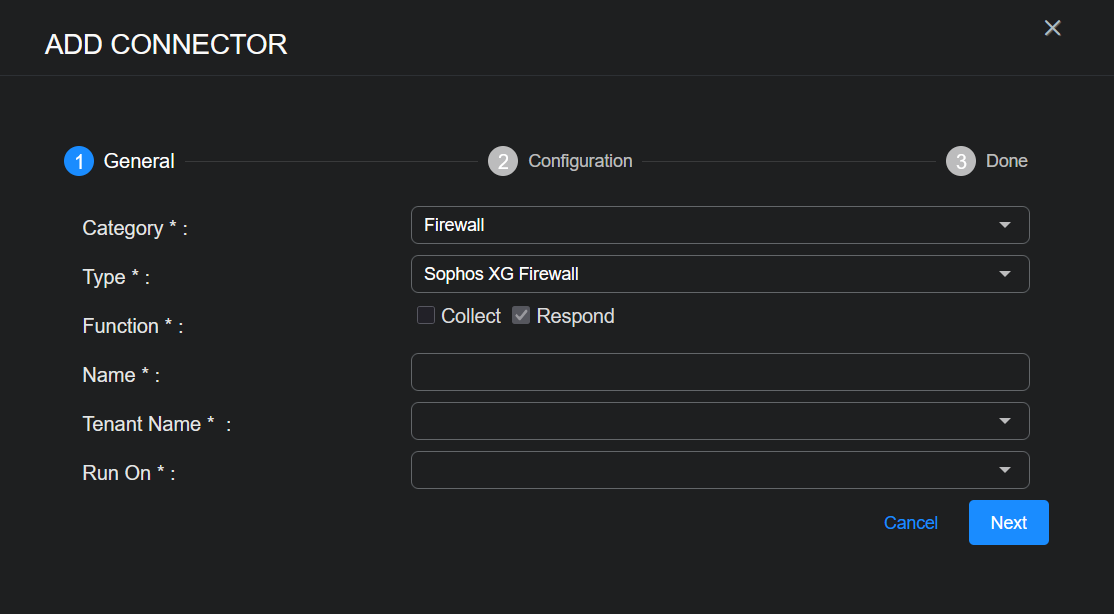
The asterisk (*) indicates a required field.
-
For this connector, the supported Function is Respond, which is enabled already.
-
Enter a Name.
Notes:- This field does not accept multibyte characters.
- It is recommended that you follow a naming convention such as tenantname-connectortype.
-
Choose a Tenant Name. The Interflow records created by this connector include this tenant name.
-
Choose the device on which to run the connector.
-
Click Next. The Configuration tab appears.
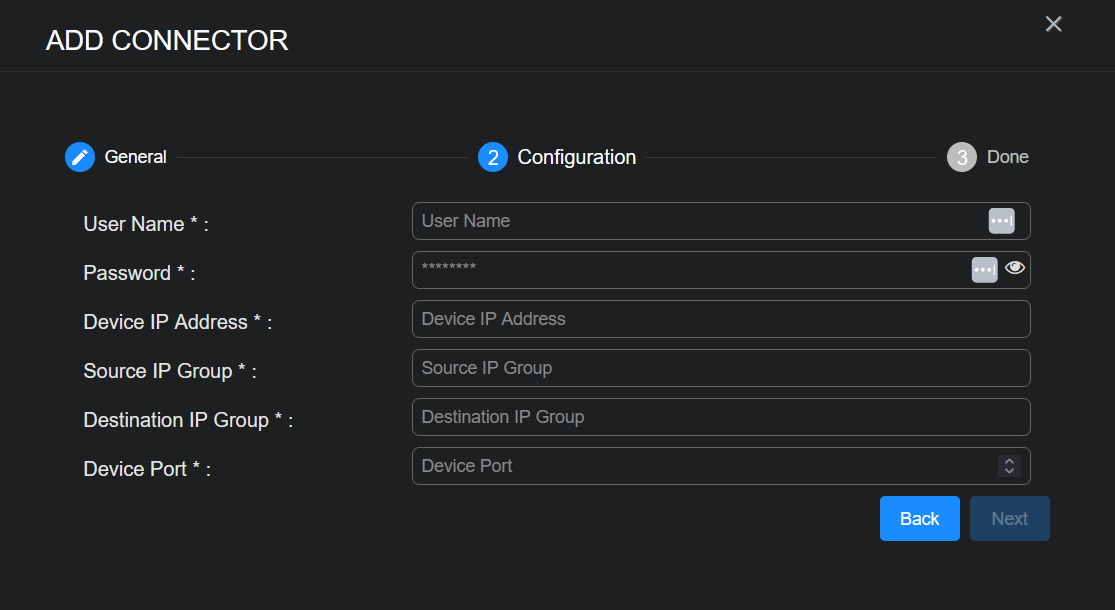
The asterisk (*) indicates a required field.
-
Enter the User Name to log in to the firewall.
-
Enter the Password for that user.
The password should not include non-ASCII special characters.
-
Enter the Device IP Address.
-
Enter the Source IP Group to which to add the IP address.
-
Enter the Destination IP Group to which to add the IP address.
-
Enter the Device Port. The default Admin console HTTPS port configured in the Sophos XG firewall is 4444.
-
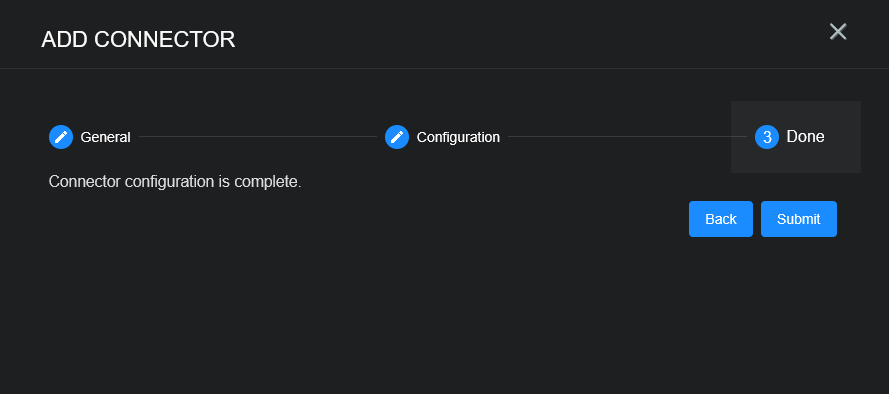
Click Next. The final confirmation tab appears.
-
Click Submit.
The new firewall connector is immediately active.
Testing the Connector
When you add (or edit) a connector, we recommend that you run a test to validate the connectivity parameters you entered. The test validates authentication and connectivity.
For connectors running on a sensor, Stellar Cyber recommends that you allow 30-60 seconds for new or modified configuration details to be propagated to the sensor before performing a test.
-
Click System | INTEGRATIONS | Connectors. The Connector Overview appears.
-
Locate the connector by name that you added, or modified, or that you want to test.
-
Click Test at the right side of that row. The test runs immediately.
Note that you may run only one test at a time.
Stellar Cyber conducts a basic connectivity test for the connector and reports a success or failure result. A successful test indicates that you entered all of the connector information correctly.
To aid troubleshooting your connector, the dialog remains open until you explicitly close it by using the X button. If the test fails, you can select the button from the same row to review and correct issues.
The connector status is updated every five (5) minutes. A successful test clears the connector status, but if issues persist, the status reverts to failed after a minute.
Repeat the test as needed.


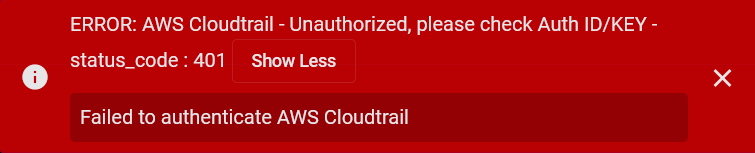
If the test fails, the common HTTP status error codes are as follows:
| HTTP Error Code | HTTP Standard Error Name | Explanation | Recommendation |
|---|---|---|---|
| 400 | Bad Request | This error occurs when there is an error in the connector configuration. |
Did you configure the connector correctly? |
| 401 | Unauthorized |
This error occurs when an authentication credential is invalid or when a user does not have sufficient privileges to access a specific API. |
Did you enter your credentials correctly? Are your credentials expired? Are your credentials entitled or licensed for that specific resource? |
| 403 | Forbidden | This error occurs when the permission or scope is not correct in a valid credential. |
Did you enter your credentials correctly? Do you have the required role or permissions for that credential? |
| 404 | Not Found | This error occurs when a URL path does not resolve to an entity. | Did you enter your API URL correctly? |
| 429 | Too Many Requests |
This error occurs when the API server receives too much traffic or if a user’s license or entitlement quota is exceeded. |
The server or user license/quota will eventually recover. The connector will periodically retry the query. If this occurs unexpectedly or too often, work with your API provider to investigate the server limits, user licensing, or quotas. |
For a full list of codes, refer to HTTP response status codes.
